Auto-enrolling ProGlove devices into Insight with 42Gears SureMDM
Auto-enrolling ProGlove devices into Insight with 42Gears SureMDM
Managing device onboarding at scale should be boring. With 42Gears SureMDM and ProGlove Insight, it can be.
This post shows a simple, reliable way to automatically enroll devices into Insight using SureMDM managed configurations. The approach is ideal for setups with up to 20 sites to manage.
If your setup goes beyond that, or if you need deeper customization, reach out to your ProGlove representative to discuss an API-driven solution.
The idea
SureMDM supports managed configurations for Android applications. We use this capability to pass enrollment information directly to INSIGHT Mobile during device provisioning, automatically registering each device with the Insight platform.
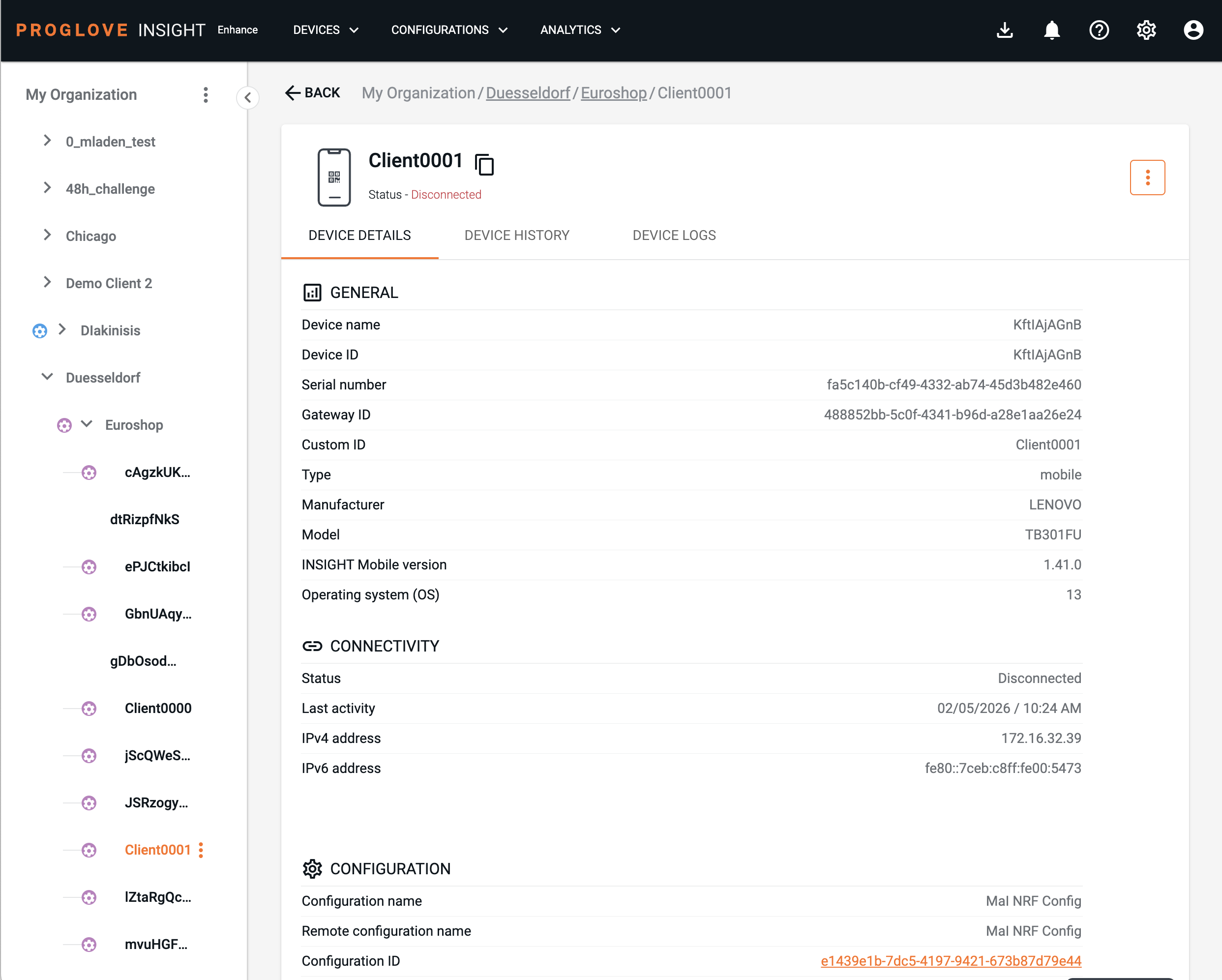
Once configured, devices appear automatically in Insight at the correct path and with a predictable name. No manual enrollment steps are required.
Prepare your Insight structure
Before configuring SureMDM, set up the site and level structure in ProGlove Insight.
A level typically represents a site or a process, for example a warehouse, a production line, or a picking workflow. This structure determines where devices will appear once they are enrolled.
For each level, create the site or process level in Insight using the My Organization hierarchy - and then create a corresponding profile in SureMDM.
This setup step is required once per level. After the structure and provisioning information are in place, you can reuse them for an unlimited number of devices assigned to that level.
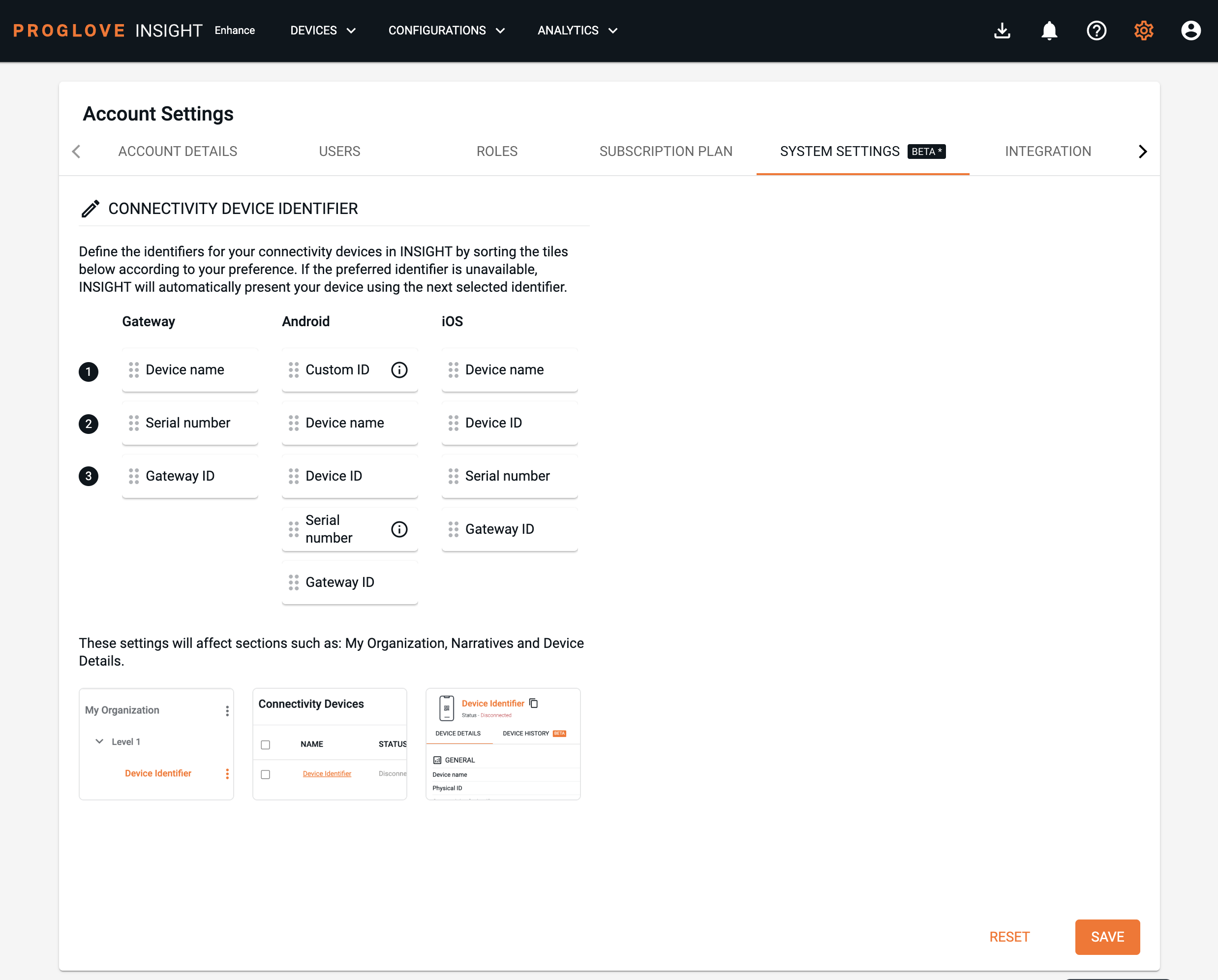
As a last step in Insight, change the display of Connectivity Devices under Settings -> System Settings. The device name from SureMDM will be represented as a “Custom ID”, so drag that to the first position.
Setup profiles in SureMDM
- If you haven’t done so, upload INSIGHT Mobile as a new APK.
- Create a new profile (or edit an existing one) and under “Application Policy”, add a new App. Select the SureMDM Appstore and then select INSIGHT Mobile in the dropdown. We recommend setting the “Install Silently” and “Auto-Grant Permissions” flags. Then click next to edit the app configurations.
- Define two key values in the configuration (called “Application Restrictions):
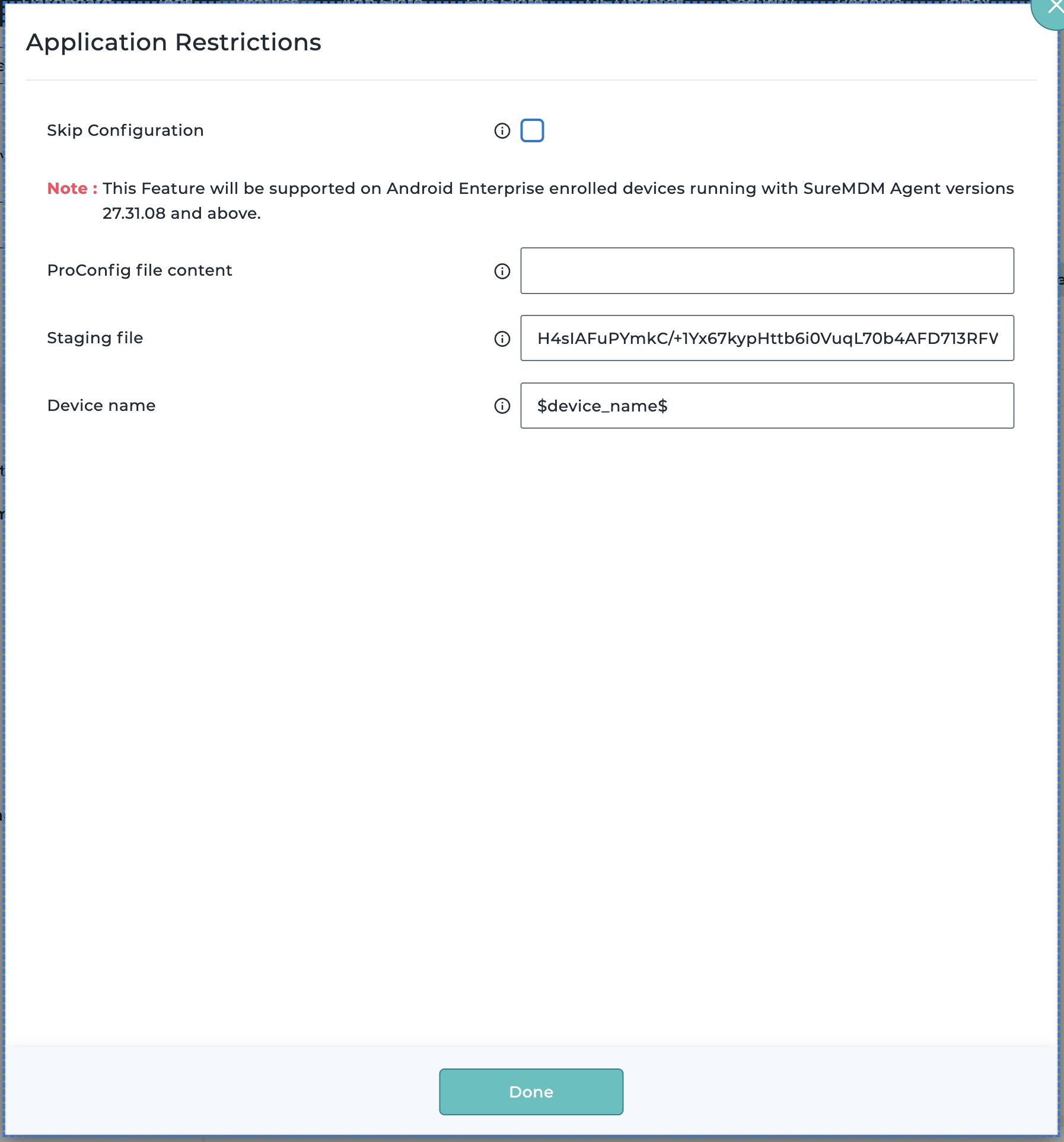
- The staging file, which is a Base64-encoded provisioning string copied from the corresponding level in Insight.
- The device name that Insight should use for this device.
- Save & Apply the profile to your devices in SureMDM.
After the profile is applied, each device automatically shows up in ProGlove Insight under the specified path and with the configured name.
That is it. Enrollment becomes a one-time configuration task instead of a recurring operational process.
Configuration details
INSIGHT Mobile supports managed application configuration on Android via the standard RestrictionsManager API. SureMDM exposes this functionality through managed configurations in Android Enterprise profiles.
In the configuration shown below, two fields are relevant for automatic enrollment:
- Staging file: Is a certificate that allows INSIGHT Mobile to register on the correct path in the Insight organization hierarchy, automatically creating the connectivity device entry there - and showing all ProGlove Scanners at the correct location in the layout. To get the staging file/string, in Insight, open the level, select the option to connect a new device, select INSIGHT Mobile, generate and copy the Base64 string.
- Device name: Defines the name under which the device appears in Insight. This is commonly set to the SureMDM device name or the hardware serial number.
SureMDM supports variable substitution in managed configurations. In the example setup, the device name is passed using the built-in $device_name$ variable, ensuring consistency between SureMDM and Insight. The other common value is $serial_number$ to get the
Once the profile is applied, INSIGHT Mobile reads the managed configuration on first launch and enrolls the device automatically. The device then appears in Insight at the configured path with the expected name, without any manual interaction.
From that point onwards, all MARK Scanners will show up at the correct locations in Insight - and you have a direct connection between your MDEs in SureMDM and INSIGHT Mobile.
References
- Set a custom device name in Insight Mobile: https://docs.proglove.com/en/install-insight-mobile.html#set-a-custom-device-name-205-46100
- Set a custom device name using MDM or EMM: https://docs.proglove.com/en/install-insight-mobile.html#set-a-custom-device-name-using-mdm-emm-205
- Manage app configuration using profiles in SureMDM: https://docs.42gears.com/suremdm/android-enterprise/android-enterprise/managed-device-config/manage-app-config-using-profile
- Available variables in SureMDM: https://docs.42gears.com/suremdm/system-settings/system-settings/account-settings/custom-properties